

Behaviours are your building blocks. They allow you to create simple and complex interactions that govern the world of your show. It's how the audience experiences the world you built for them.
Your behaviours work on a very simple principle which we call "When This, Do That" (similar to If This, Then That IFTTT).
We recommend you watch The Basics series of tutorial videos to see how to make & use behaviours in simple examples.
When

The When part is used to record conditions that need to happen. These conditions will be made up of 'states' - which are recorded positions of inputs, outputs, time or Variables or a combination of many.
Do
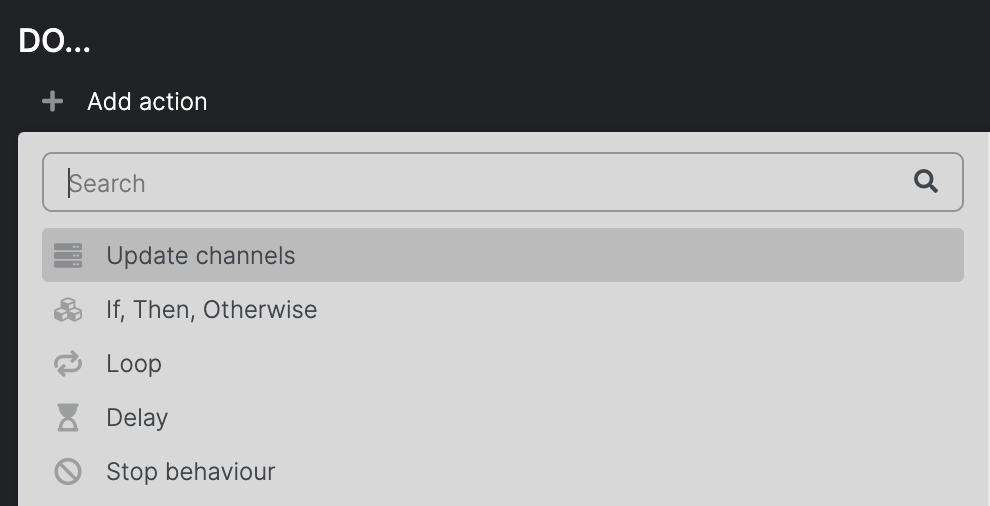
The Do part is the consequence of the When events - the actions that you have chosen to occur. These can be locks opening, sound playing, lights changing, motors moving or servos turning. You can add delays, send hints, manipulate the timer or activate other scenes or behaviours. These actions can also be used as conditions in the When part. Ultimately they move the show forward.
About
Crucially, these When This Do That behaviours can occur in any order and at any time (if and when the inputs are available to the "actors"). This is the core of how COGS can create non-linear interactive experiences.
They can be used at the Show level - where they are available throughout the entire show, or at the Scene level, where they are only available when a Scene is active. They can also be used as Dashboard functions.
Warning Colours
COGS only works when behaviours are complete. i.e when they have both a When & a Do function. COGS will tell you if a behaviour is incomplete by highlighting it with a YELLOW bar on the to the right of the behaviour name, the wand in the Scene or Show settings and a dot will appear on the Setup icon on the top bar. It will go RED if the behaviour is broken (e.g if an audio file has been deleted) and needs attention.
Naming
It is important that you name your behaviours so they can be referred to in other behaviours, but also so you can find them easily.
See:
Using WHEN: Show Started, Finished & Cancelled
Using WHEN: Scene Started, Finished, Skipped & Cancelled
Using WHEN: Triggered by action
Using DO: Start, Finish & Cancel Scene
Using DO: Audio: Play, Stop, Stop all, Pause & Set Volume
Using DO: Video: Play, Stop, Stop all Pause & Set Volume
Using DO: DMX: Set value, Start effect, Stop effect
Using DO: Timer: Start, Stop & Set timer