
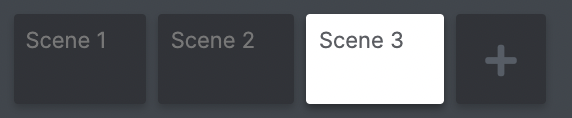
Scenes are a way to organise you show into distinct chapters just like a regular theatre show, making it easier for the operator to digest. They command the forward flow of the show and mark any points of no return. Unlike a regular theatre show, Scenes can occur in different orders, or be activated at the same time.
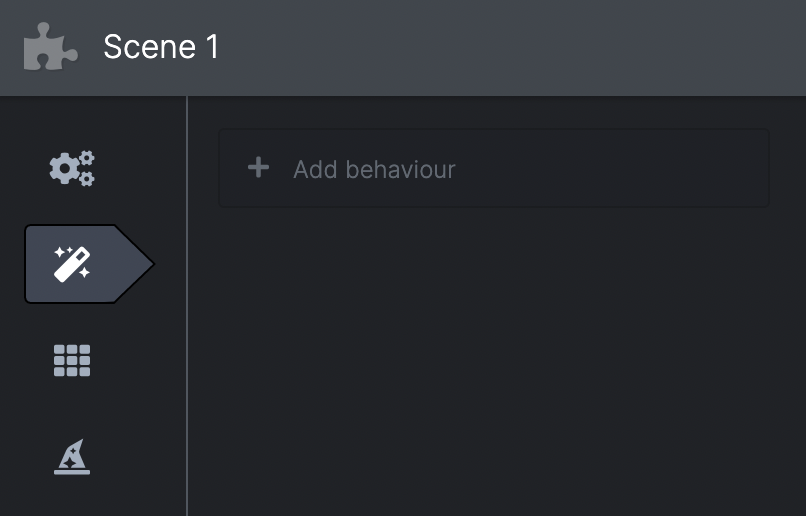
- Scenes allow you pen off groups of behaviours & feedback information
- They can be modified to change the way the feedback looks from inputs and Variables using the Dashboard
- You can add operator controlled buttons in each scene's Dashboard
- Once a Scene ends, all the Scene's behaviours & Dashboard functions are de-activated
- Using Dependencies, Scenes are able to be organised into whatever order you desire
- Scenes can be started, finished, cancelled or skipped
- To see how the scene operates in logical steps, see Scene Lifecycle
Example
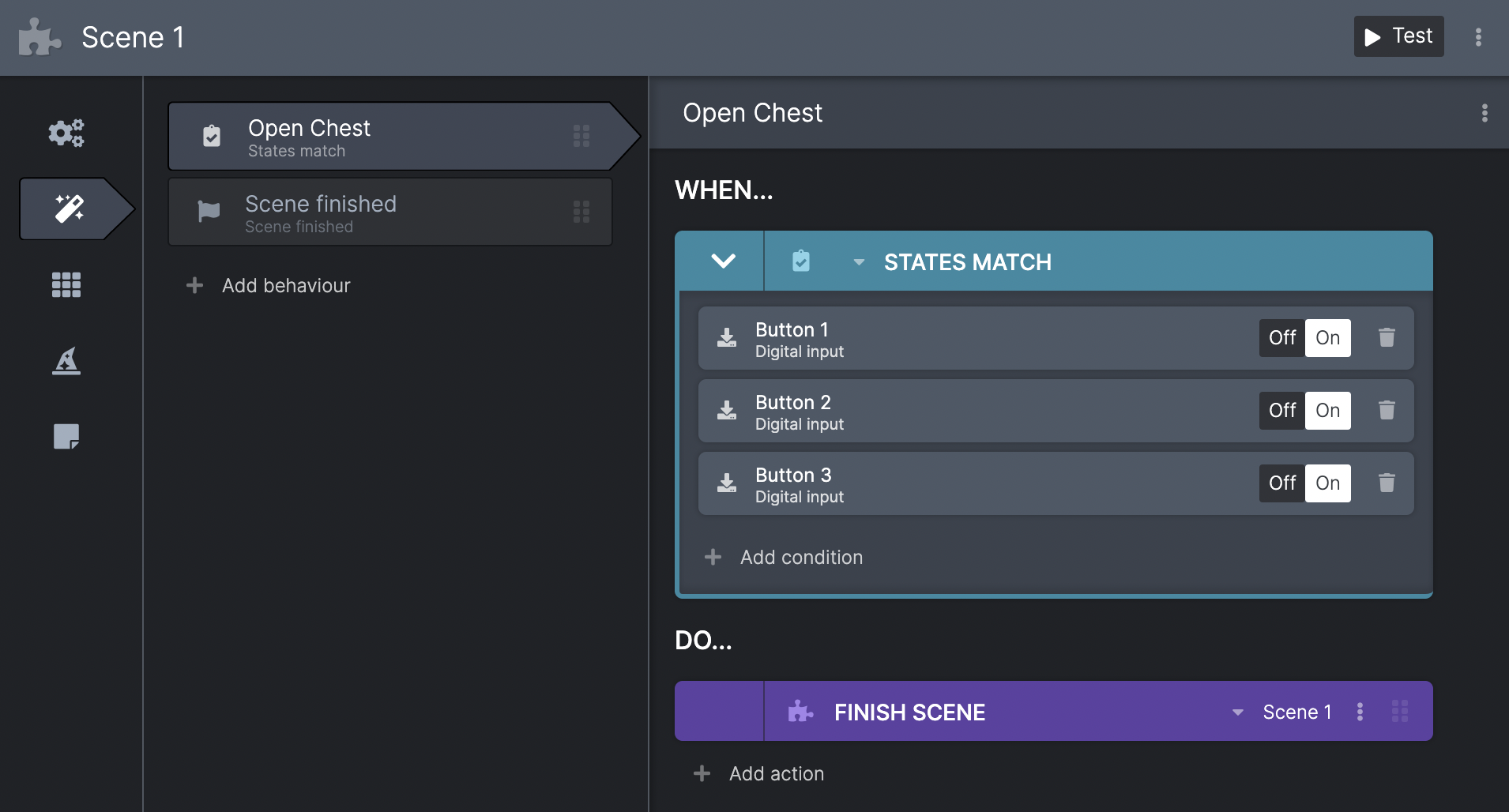
I would like my audience to press 3 buttons to open a locked chest. Once the chest is opened, the chest can never be opened again, so I would put these behaviours into a scene. The behaviour would WHEN: States Match 3 buttons in the on position, and DO: Finish scene.
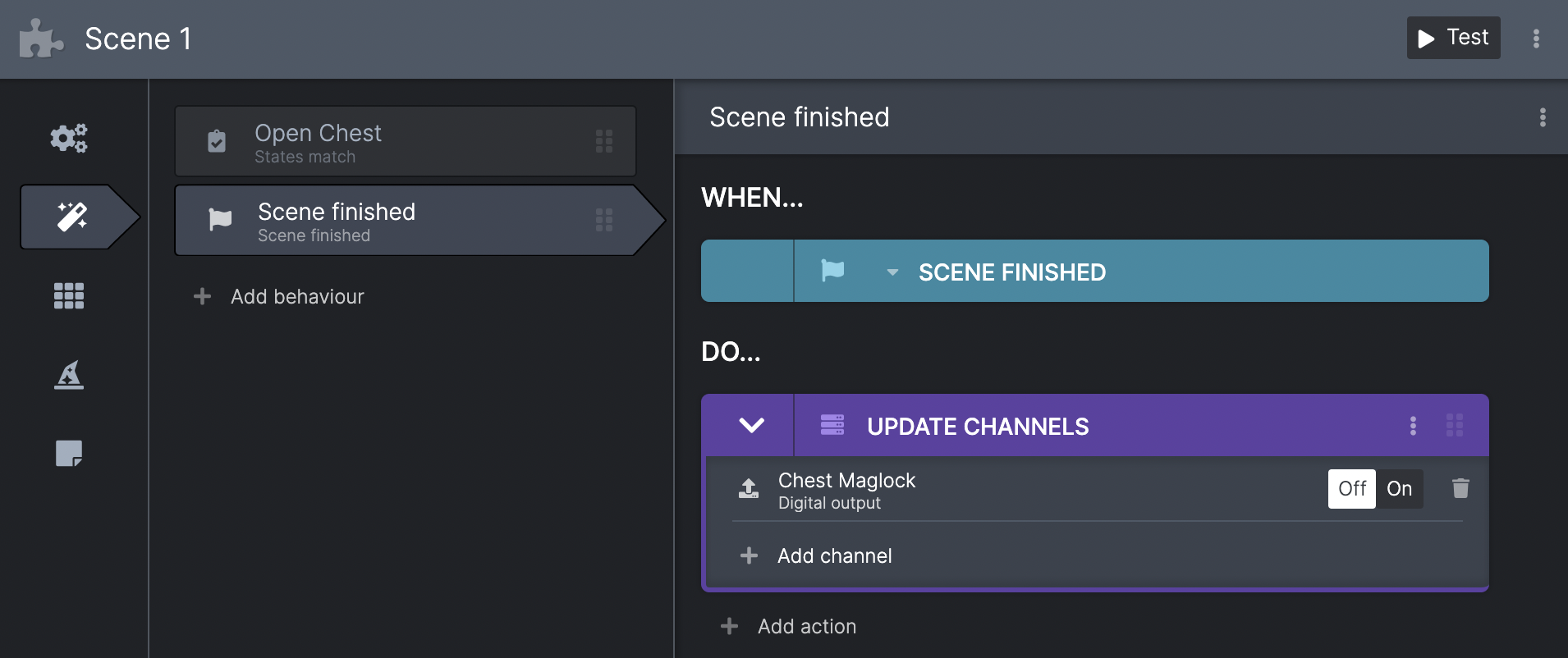
Then i'd make another behaviour with the WHEN: Scene finished condition, and DO: Update channels, to turn off the lock, plus any other effects i might want like a sound effect or lighting change.
N.B. In order to use the skipped scene function, you need to lay out the behaviours in this way, so when the operator skips the scene, the same actions happen as if the show had progressed naturally. see: Skipping scenes
As the scene ends, the behaviours no longer apply as we are done with that scene. To the operator the scene will shuffle off to the left out of sight, shown as complete and greyed out.