
Digital Input channels are designed to detect a closed circuit - used for all types of switches, buttons and contact closures. It is Digital as switches can only be on or off (closed or open)
The status of the input can be used as part of your WHEN: Values match in Behaviours in order to trigger actions.
Adding

- In Channels click 'Add channel' and select 'Digital Input'
- Enter a name that you would like to call it
- You will be presented with the channel view
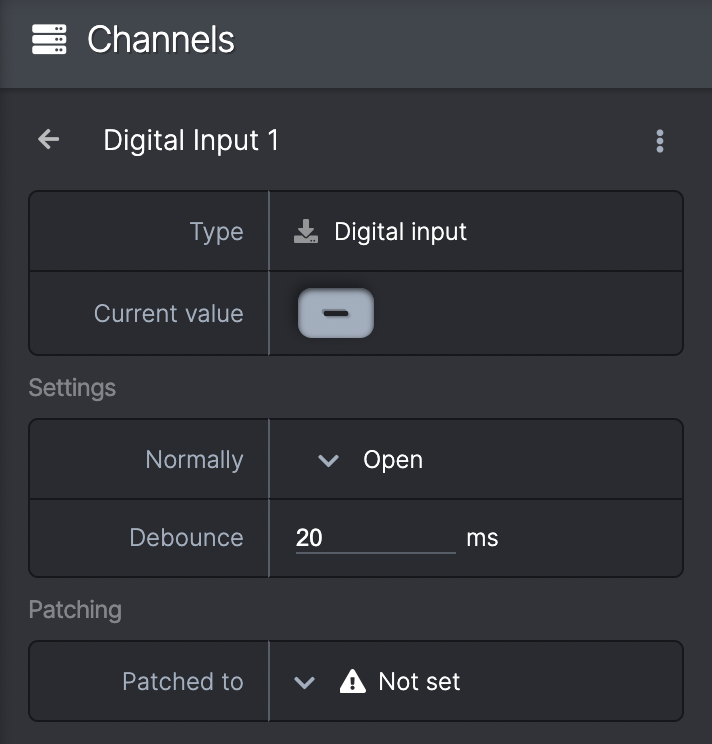
Current value
- Shows the current state of the channel (e.g if set to normally open, the box will appear gray until the switch is closed, when it will turn green)
- This value will show the current status of a virtual or real life (patched to hardware) channel
Settings
- Normally (Open OR Closed) - allows you to choose the desired orientation of the switch when activated
- Debounce - allows you to change the value in milliseconds of how long the switch needs to be in it's 'active' position in order to trigger the current value (e.g. for an interaction that only activates the switch for a very brief period you'd need a low debounce OR if you which to ignore short activations you'd set a higher debounce
Patching
- From here you can patch the channel to any available Digital Master channels.
- If it appears blank you need to create a Digital Master in devices (see Adding boxes) in order to patch.
- You can also patch Digital Input channels in the device view (see Patching channels to the Digital Master).
See Videos:
The Masters - The Digital Master